Configure account requests for GIP accounts
Enable and configure account requests so users can request local GIP accounts from the Console App sign‑in screen.
GIP must be upgraded to version 6.00 or later to activate the account request feature. For
step-by-step instructions, see Migrate the GIP
database. To view the GIP version, open the Console App and go to .
-
Verify that the Create Account option appears on the Console App sign-in
screen.
If the option is missing, confirm the GIP configuration and that account-requesting is permitted by your authorization settings.Local GIP users will see the Create Account link on the GIP sign-in form.
Figure: GIP sign-in screen with create account option for GIP accounts 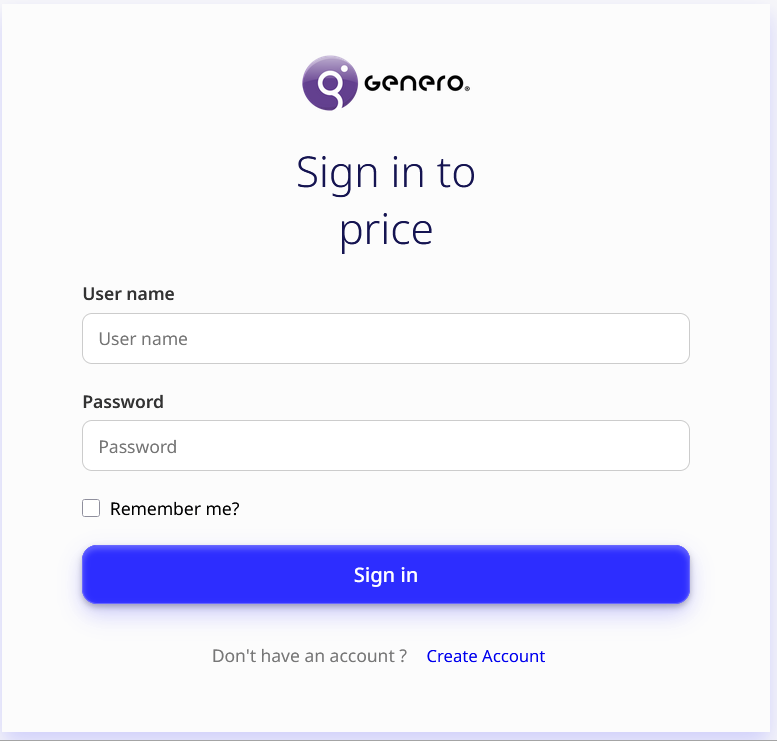
Once enabled, users can request new local GIP accounts directly from the GIP sign-in screen. Users submit their account request information (login, email, and other required fields) and an administrator must approve the request. For details, go to Request a local GIP account. Access isn’t immediate. The administrator needs to approve the account first and configure user roles. To learn more about this process, go to Manage user account requests.