Request a local GIP account
Request a new user account via the Genero Identity Provider (GIP) sign‑in page using the Create Account option. Local GIP account requests require administrator approval before you can sign in.
Use this procedure to request a local GIP account (managed directly by GIP rather than an external Identity Provider). An administrator must approve the request before the account becomes active.
-
The GIP sign‑in page appears.
The Create Account link appears beneath the local sign‑in form when account requests are enabled. If you do not see the link, contact your administrator.
Figure: GIP sign‑in screen showing Create Account option for GIP 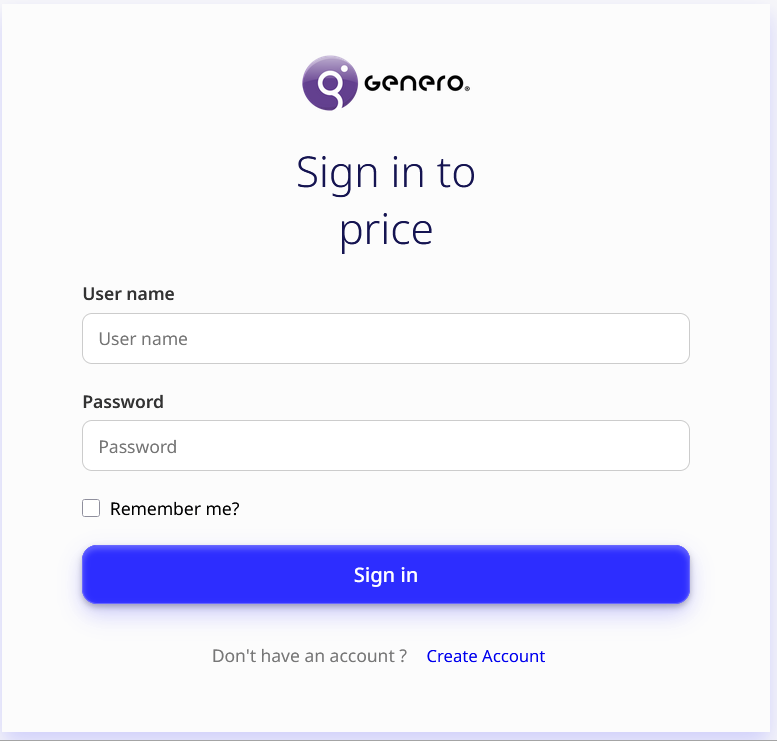
-
Fill in the required and optional fields on the form.
Mandatory fields:
- User name
- Password
- Confirm password
Optional fields:
- First name
- Last name
Figure: Sample request form for a local GIP account 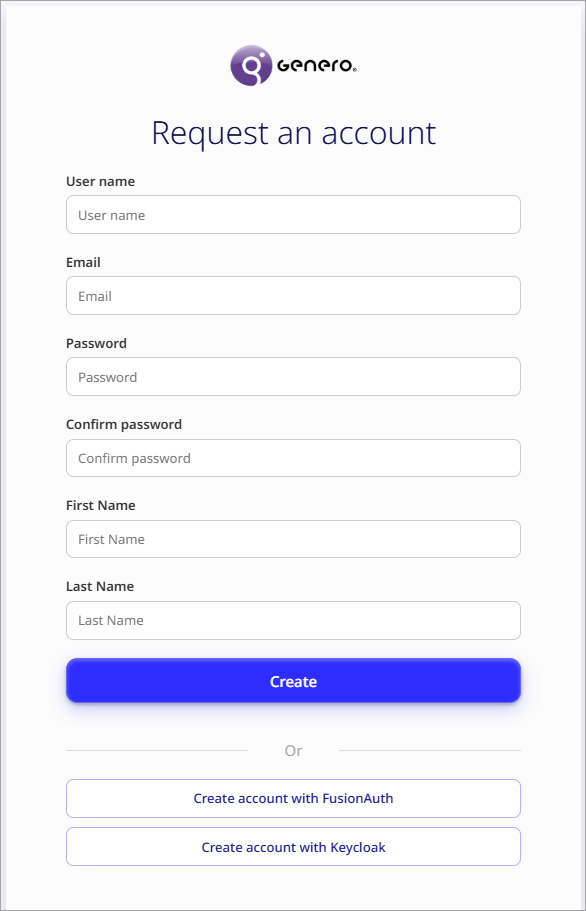
Your request is submitted for administrator review in the Console App. You cannot sign in until the request is approved and roles are assigned.
If the administrator requires additional information, they may contact you by email.