GBC 6.00.03 new features and upgrade notes
A summary of new features and changes in functionality introduced with Genero Browser Client (GBC) 6.00.03. Note the changes you may need to make when moving to this version of the GBC.
This page covers only those new features introduced with the Genero Browser Client version specified in the page title. Check prior new features pages if you migrate from an earlier version.
For a detailed list of GBC 6.00.03 changes, please refer to the list of fixes on our issue tracker.
Previous new features page: GBC 6.00.02 new features and upgrade notes.
Vite-based build process
The Genero Browser Client is transitioning from its legacy gbc build system to a vite-based build process, with the goal of improving performance, maintainability, and alignment with modern web tooling.
Starting with GBC 6.00.03, the same gbc build commands now delegate the heavy lifting to vite when you pass --vite as a parameter. The overall workflow and command-line interface (CLI) remain familiar, but the underlying engine is vite.
This is a first step in a longer-term transition. Because GBC still relies on JSFace and modulum internally, the full performance benefits that vite can offer are not yet realized. As those legacy dependencies are progressively removed in future releases, the vite-based build will be able to deliver increasingly optimized output.
Vite will become the default build method in a future release; at that time, the
--vite flag will no longer be needed. You are encouraged to try it now to
familiarize yourself with the new tooling and identify any issues early.
| Legacy CLI | Vite CLI |
|---|---|
gbc build |
gbc build --vite |
gbc build --customization <customization/path> |
gbc build --customization <customization/path>
--vite |
To learn more about vite, visit https://vite.dev.
To see where these commands are used, go to Set up your GBC build environment or Create a customization project.
Enabling AI in the GBC
AI features are disabled by default; they must be enabled using the theme variable gbc-ai-enabled.
To activate AI features, set the theme variable to true. To set theme variables,
you must create or edit a GBC customization project.
Configuring AI
Connect to your AI provider in the AI section of the GBC Settings dialog.
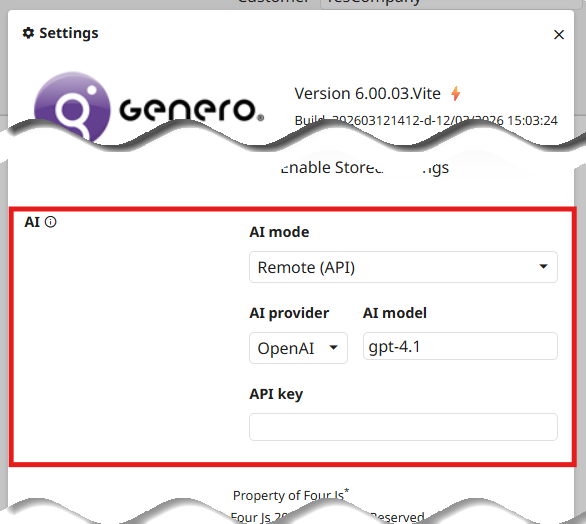
For more information on completing the AI section of the Settings dialog, refer to GBC Settings.
AI configuration on the end-user side is subject to change. This setting allows you to evaluate GBC AI features today; however, Four Js is working to integrate AI such that configuration will not be needed on the end-user side.
Add an AI provider
By default, a GBC project includes six default AI providers; GBC allows adding new AI providers through customization.
You implement a custom provider with a JavaScript module that extends the base class:
AIProviderBase. Once you register the provider, it becomes available in the
AI section of the Settings dialog.
The GBC project package includes a customizaton named custo_ai that serves as an example of how to add a custom provider.
AI Rewrite for TextEdit widgets
TextEdit components with a toolbar now include an AI Rewrite feature. Users can rewrite selected text or entire field content, with options to adjust tone or length. The rewrite draws on values from the current form as context. For more information, go to AI Rewrite for TextEdit widgets.
AI rewrite theme variables (provider-agnostic)
The AI rewrite core theme variables apply to all AI providers. For details, go to AI Rewrite for TextEdit widgets.
| Theme variable | Description |
|---|---|
|
Defines the base prompt used for AI rewriting. |
|
|
Defines how the prompt is structured before being sent to the AI. |
|
|
These variables define the prompt fragments used to control the tone. |
|
|
These variables define the prompt fragments to control how the AI adjusts text length. |
AI rewrite theme variables (provider-specific)
Each AI provider can override the default rewrite prompts and templates. For details, go to AI Rewrite for TextEdit widgets.
| AI provider | Provider-specific override theme variables |
|---|---|
|
Anthropic |
|
|
Chrome Rewriter |
|
|
Google (Gemini) |
|
|
Mistral |
|
|
Ollama |
|
|
OpenAI |
AI User Interface (UI) Color theme variables
| Theme variable | Description |
|---|---|
ui-ai-color |
Identifies AI-related elements in the user interface. The interface uses this color for:
|
For details, go to AI Rewrite for TextEdit widgets.
AI Rewrite Presentation Style
Use the aiWritingAssistant presentation style to enable or disable the AI
Rewrite feature for a specific TextEdit field. For details, go to AI Rewrite for TextEdit widgets.
FloatingBanner theme variable
The FloatingBanner is not a Genero BDL widget. It is an internal GBC component used by features such as AI Rewrite and Offline Mode.
| Theme variable | Description |
|---|---|
gbc-FloatingBannerWidget-shadow-color |
Controls the shadow color of the FloatingBanner component. |
ComboBox simple construct presentation style
<StyleAttribute name="customWidget" value="comboBoxSimpleConstruct"/>For more information, go to ComboBox style attributes in the Genero Business Development Language User Guide.
TabbedContainer applications display in ChromeBar
While tabbedContainer applications have been deprecated since Genero BDL 4.00, the use of
tabbedContainer=yes continued to embed each application in a tabbed container with
several specific behaviors.
tabbedContainer=yes is treated like
applicationListPosition="top". All applications display in the ChromeBar as
closable tabs; the tabs will shrink depending on the available size of the ChromeBar. This aligns
the display of and access to tabbedContainer applications with that of other applications, which
means the following previous tabbedContainer-specific behaviors no longer apply: - The parent application menu is still present but is no longer permanently visible, as other applications are not contained inside the parent application container.
- The SideBarDrawer is no longer automatically docked. To restore this behavior, set the theme
variable
gbc-MainContainerWidget-left-dock="sidebardrawer". - The app section of the SideBarDrawer is now collapsed rather than completely removed. This can
be controlled with the theme variable
gbc-SideBarDrawer-AppsSection-show. - Tabs now display the application title instead of the window title.
- Closing the parent application no longer closes all child applications.
tabbedContainer=yes– just likeapplicationListPosition="top"– is not supported by mobile applications.
tabbedContainer presentation style and how to use
it, refer to the Genero Business Development Language User Guide.Accessibility improvements for button-related widgets
Four Js is working on better accessibility standard compliance which may impact customization migrations. Specifically with GBC 6.00.03, accessibility improvements have been completed with regard to button-related widgets.
To complete these improvements, some widget templates and CSS have been updated; the changes, however, are minor.