GBC Settings
The Settings dialog allows you to control the interface language, the interface theme, stored settings, AI integration, and debugging and quality assurance.
The Settings dialog displays when the user clicks the Settings icon in the application chromebar. For more information, go to Chromebar.
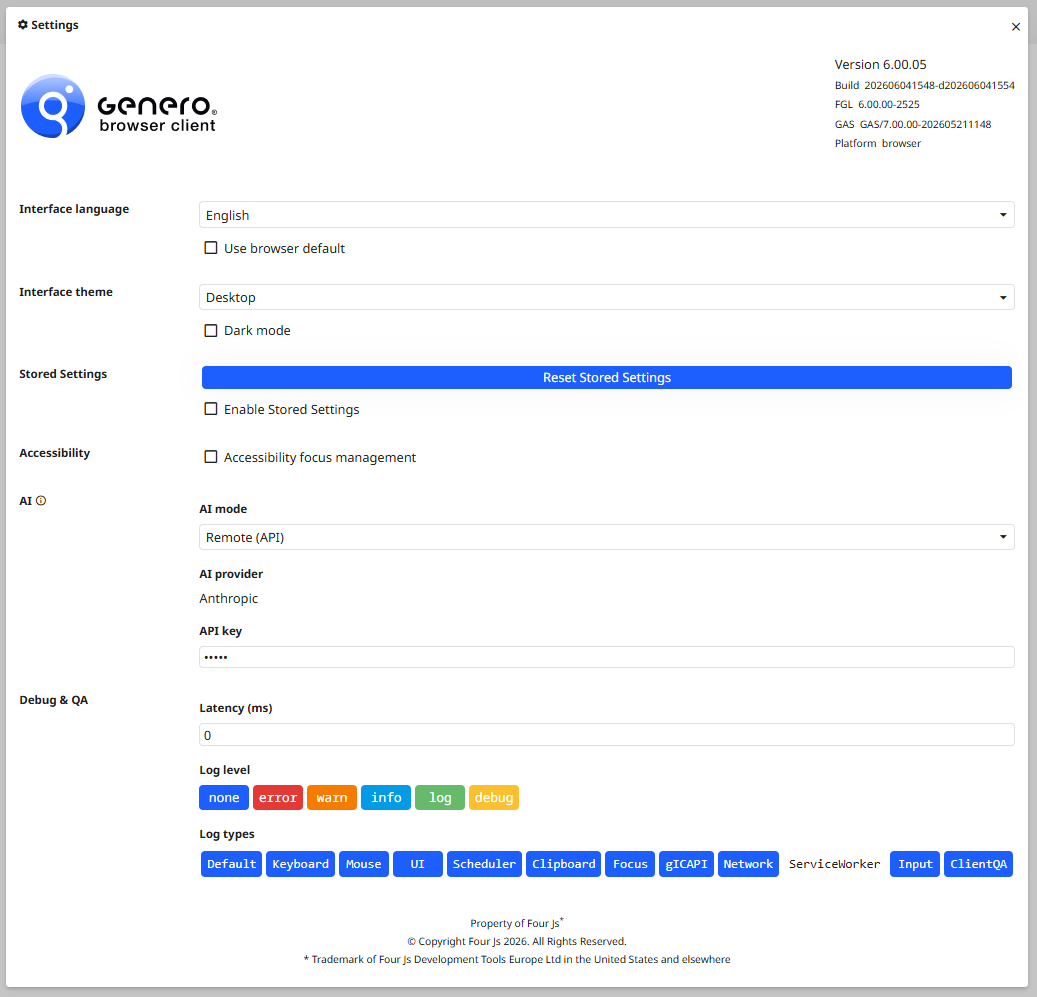
The Settings dialog header
The Settings dialog header displays basic information about the versions of Genero products used. At a minimum, it displays the version and build information for the GBC client. When in debug mode, it also displays information about the runtime (FGL) version, the GAS (if available), and the platform (browser, GDC, GMA, or GMI).
Interface language
Set the language for GBC messages, messages that are not set by the application. These messages include all text in the GBC Settings dialog, tooltips for the icons in the Chromebar, text in the application SideBar, text in the Debug page, text in the Table Settings dialog, and more.
This setting is independent from (and does not affect) the localization of the application.
Interface theme
Set the theme currently used by the existing application. Changing the theme immediately changes the look-and-feel of the application.
Stored Settings
When you enable stored settings, GBC stores your modifications to the user interface. These stored settings are used the next time you launch the GBC.
Select the Enable Stored Settings checkbox to have your modifications stored and used. If not selected, the GBC uses the default values when the GBC is launched.
gbc_XXXstores the global settings of GBC, such as (but not limited to) the default theme and debug levels.genero_forms.XXXstores Genero application settings, such as (but not limited to) table column configuration (order, show/hide, sort order, and so on).
Keyboard accessibility mode
When keyboard accessibility mode is disabled, TAB and Shift+TAB
are sent to the DVM, limiting keyboard navigation to fields in the DIALOG field
graph. When keyboard accessibility mode is enabled, the browser handles TAB and
Shift+TAB instead, making every interactive element on the page accessible via the
keyboard. The DVM continues to process all other keys as normal. When the browser moves focus to a
widget, GBC requests focus from the DVM for that widget, where supported.
To enable keyboard accessibility mode, select the Accessibility focus
management checkbox in the GBC Settings dialog, beside
Accessibility. You can also activate it via the URL query string using
?accessibilityMode=1, or disable it with ?accessibilityMode=0. The
URL query string takes precedence over the stored setting.
AI
The AI section only appears if AI is enabled by the gbc-ai-enabled theme variable.
- Chrome (local) uses the large language model (LLM) integrated directly
into the Chrome browser. Once enabled, the AI runs locally in Chrome and does not require an
external API.
This feature requires manually enabling the Chrome AI features in the browser.
This mode is currently experimental.
- Remote (API) uses an external AI provider through an API. Supported providers include Anthropic, Google (Gemini), Mistral, Ollama, and OpenAI. To configure Remote (API) mode, provide an API key. The provider and model are configured through theme variables.
Ollama does not require an API key.
Debug & QA
In this section, you configure some debug and quality assurance settings.
The Debug & QA section only appears if debug mode is enabled. To start your application in debug mode, go to Start in debug mode.
The Latency (ms) represents the time between a user interaction in GBC and the request being sent to DVM; it can be used to simulate a slow network. For example, if you set latency to 1000ms, when a user clicks an action in their Genero application, GBC will wait 1000ms before sending the request to VM. This simulates a slow network. The default value is 0ms.
Log level allows you to include or exclude log and debug message; a solid color background indicates the messages for that category will be logged. You cannot disable the categories error, warning, or info via this interface, nor can you turn off logging by clicking on none. To learn more about the categories of logging, go to the CATEGORIES_FILTER topic in the Genero Application Server User Guide.
Log types allows you to include or exclude log messages by the type of log; a solid color background indicates the messages for that type will be logged.