AI Rewrite for TextEdit widgets
With TextEdit widgets, the GBC integrates AI capabilities to assist users when writing content.
The AI Rewrite feature is available for TextEdit widgets with a toolbar. Users can rewrite selected text or entire field content, with options to adjust tone or length. The rewrite can draw on values from the current form as context.
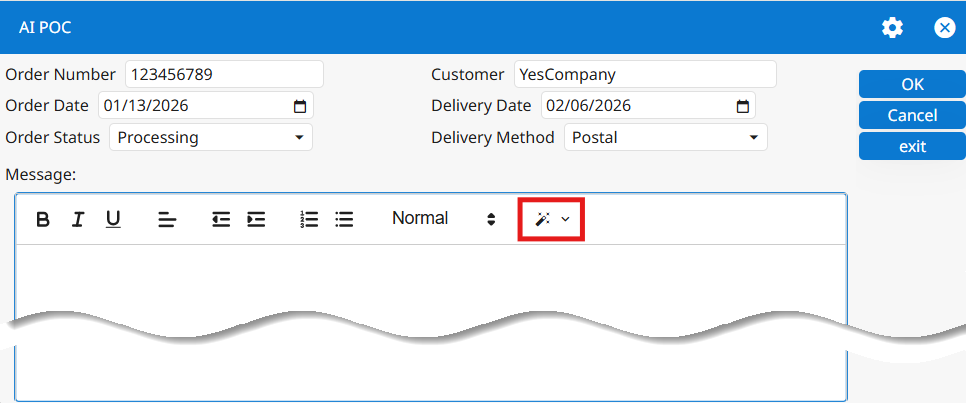
In the toolbar,
- A magic wand icon triggers the rewrite action.
- A dropdown chevron provides additional actions, to include:
- Rewrite text (default action; selected when user simply clicks on the AI rewrite icon / magic wand)
- Make tone more professional
- Make tone more casual
- Make the text longer
- Make the text shorter
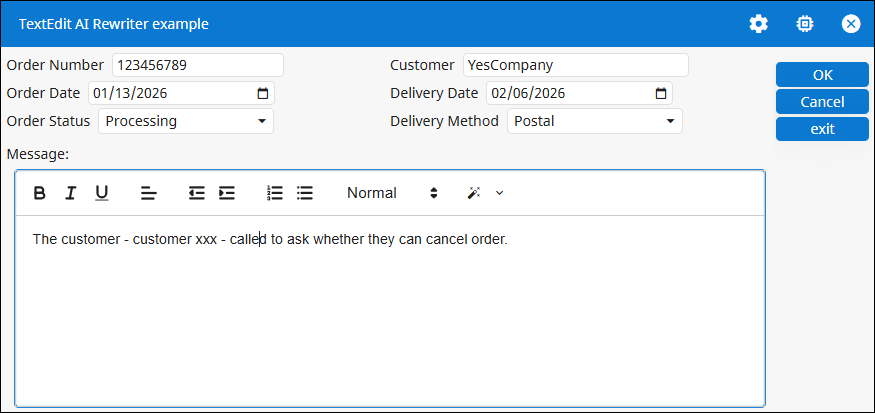
If the user selects a portion of the text, only the selected part will be rewritten; if no text is selected, the rewrite applies to the entire content.
When a rewrite is triggered:
- A floating banner appears indicating that the context is being analyzed. The AI collects relevant information from the current form context, including values from other widgets.
- A second banner then appears and displays the rewritten version of the text in an editable field.
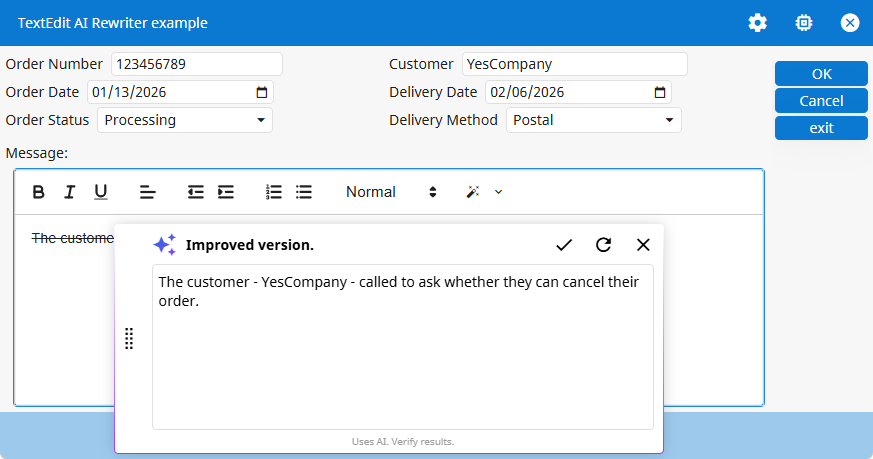
The user then uses the icons in the toolbar of the floating banner to:
- Apply — Replace the original text with the improved version
- Refresh — Generate a new rewrite
- Cancel — Close the rewrite interface
The GBC project package includes the sample textEditAIRewriter, located in the
directory tests\genero_samples\public. This sample shows a form with a
TextEdit widget set up to use the AI Rewrite feature, once AI is enabled for the
GBC.
Preparing your form to benefit AI rewrite
AI rewrite can use the values from the fields of the current form as context, but it needs
guidance as to what each value represents. To assist, provide details about each field with the
COMMENT or TITLE attributes (if using a text-based
.per file) or properties (if using a graphical form design
.4fd file).
Providing this extra description of the field will help the AI model better understand what each field value represents and what kind of data it contains.
...
ATTRIBUTES
  EDIT order_number = FORMONLY.order_number,
    DEFAULT = "123456789",
    COMMENT = "Unique number that identifies the order";
  EDIT customer = FORMONLY.customer,
    DEFAULT = "YesCompany",
    COMMENT = "Name of the customer who placed the order";
  TEXTEDIT textedit_ai = FORMONLY.textedit_ai, STYLE="textFormat_html", STRETCH=both;
END
...FORMONLY.order_number(Unique number that identifies the order)=123456789
FORMONLY.customer(Name of the customer who placed the order)=YesCompanyFor more information on the COMMENT or TITLE attributes, refer
to the Genero Business Development Language User Guide.
AI Rewrite Presentation Style
Use the aiWritingAssistant presentation style to enable or disable the AI
Rewrite feature for a specific TextEdit field.
- When set to
yes, the AI Rewrite feature is enabled for the TextEdit field where this presentation style attribute is applied, but only if the GBC has the theme variablegbc-ai-enabledset totrue. - When set to
no, the AI Rewrite feature is disabled for the TextEdit field where this presentation style attribute is applied.
For more information on the aiWritingAssistant presentation style and how to use
it, refer to the Genero Business Development Language User Guide.
Enabling AI in the GBC
AI features are disabled by default; they must be enabled using the theme variable gbc-ai-enabled.
To activate AI features, set the theme variable to true. To set theme variables,
you must create or edit a GBC customization project.
Configuring AI
Connect to your AI provider in the AI section of the GBC Settings dialog.
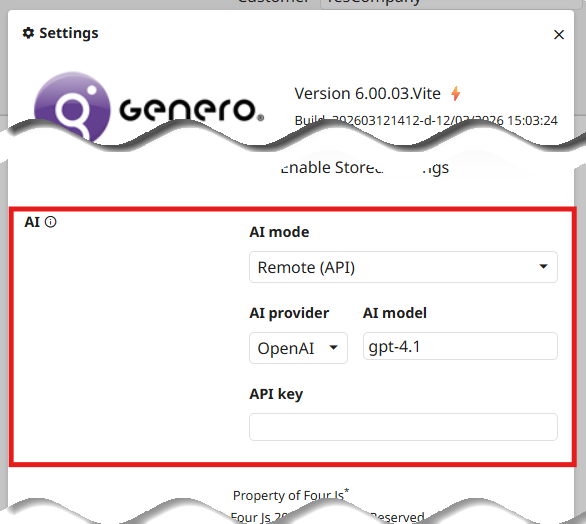
For more information on completing the AI section of the Settings dialog, refer to GBC Settings.
AI configuration on the end-user side is subject to change. This setting allows you to evaluate GBC AI features today; however, Four Js is working to integrate AI such that configuration will not be needed on the end-user side.
Add an AI provider
By default, a GBC project includes six default AI providers; GBC allows adding new AI providers through customization.
You implement a custom provider with a JavaScript module that extends the base class:
AIProviderBase. Once you register the provider, it becomes available in the
AI section of the Settings dialog.
The GBC project package includes a customizaton named custo_ai that serves as an example of how to add a custom provider.
Enabling Chrome AI for local mode
To use the AI Rewrite feature with Chrome (local) mode, Chrome's experimental AI features must be enabled in the browser. For more information, go to the official Chrome documentation.
- Open Google Chrome.
- Navigate to each of the following Chrome flags in the address bar:
chrome://flags/#optimization-guide-on-device-model chrome://flags/#prompt-api-for-gemini-nano-multimodal-input chrome://flags/#writer-api-for-gemini-nano chrome://flags/#rewriter-api-for-gemini-nano - Set all flags to
Enabled, orEnabled Multilingualwhen available. - Restart Chrome.
Once enabled, the AI Rewrite feature can be used locally via Chrome. On first use, the rewrite action may be slower, as Chrome needs to download the AI model. This configuration is required only once per browser profile.
AI rewrite-related theme variables (core)
The AI rewrite-related core theme variables apply to all AI providers. Redefining any of these theme variables will impact all TextEdit fields that use AI rewrite.
| Theme variable | Description | ||||||||||
|---|---|---|---|---|---|---|---|---|---|---|---|
|
Defines the base prompt used for AI rewriting. Line breaks in prompts are inserted using:
|
|||||||||||
|
Defines how the prompt is structured before being sent to the AI. Available placeholders include:
|
|||||||||||
|
These variables define the prompt fragments used to control the tone. These fragments are used when the user selects the rewrite actions of:
|
|||||||||||
|
These variables define the prompt fragments to control how the AI adjusts text length. These fragments are used when the user selects the rewrite actions of:
|
These core theme variables impact the AI rewrite options as their values are what get injected
into the {{tone}} and {{length}} placeholders, which are part of
the CONSTRAINTS section of the template
(gbc-ai-rewrite-input-template).
We can map these theme variables to the choices presented by the drop-down chevron:
- 1st option (Rewrite) → injects into
{{tone}}and{{length}}placeholders the values ofgbc-ai-rewrite-tone-as-is+gbc-ai-rewrite-length-as-is, respectively. -
2nd option (Make tone professional) → injects into
{{tone}}placeholder the value ofgbc-ai-rewrite-tone-more-formal. -
3rd option (Make tone casual) → injects into
{{tone}}placeholder the value ofgbc-ai-rewrite-tone-more-casual. -
4th option (Make shorter) → injects into
{{length}}placeholder the value ofgbc-ai-rewrite-length-shorter. -
5th option (Make longer) → injects into
{{length}}placeholder the value ofgbc-ai-rewrite-length-longer.
AI rewrite-related theme variables (provider-specific)
Each AI provider can override the default rewrite prompts and templates.
| AI provider | Provider-specific override theme variables |
|---|---|
|
Anthropic |
|
|
Chrome Rewriter |
|
|
Google (Gemini) |
|
|
Mistral |
|
|
Ollama |
|
|
OpenAI |
AI user interface (UI) color theme variables
| Theme variable | Description |
|---|---|
ui-ai-color |
Identifies AI-related elements in the user interface. The interface uses this color for:
|
FloatingBanner theme variable
The FloatingBanner is not a Genero BDL widget. It is an internal GBC component used by features such as AI Rewrite and Offline Mode.
| Theme variable | Description |
|---|---|
gbc-FloatingBannerWidget-shadow-color |
Controls the shadow color of the FloatingBanner component. |