Request an account via external IdP (SSO)
Request a new user account using the Create Account option on the Genero Identity Provider (GIP) sign-in page when your application uses an external Identity Provider (IdP). The request is stored for administrator review.
Use this procedure when your application authenticates through an external Identity Provider
(IdP). GIP collects the IdP’s userinfo payload and attaches it to the account
request to assist administrators during validation.
-
The application redirects you to the GIP sign-in page.
The page displays an external IdP sign-in option. When account requests are enabled, the Create Account link appears below the IdP sign-in button.
Figure: GIP sign‑in screen showing Create Account option for external IdP 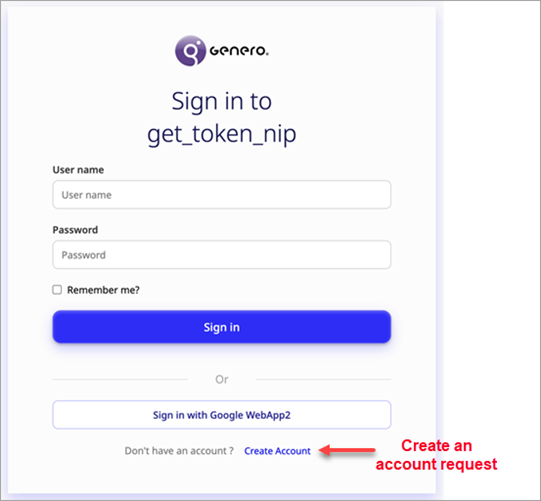
-
In the Request an Account screen, select the Create account
with ... button for the provider, as in the example of two providers shown in the
screenshot.
Only providers that have been registered on the GIP via the ConsoleApp will appear as options. For instructions on registering a provider, go to Delegate SSO to an external Identity Provider.
Figure: Request cccount with external IdP 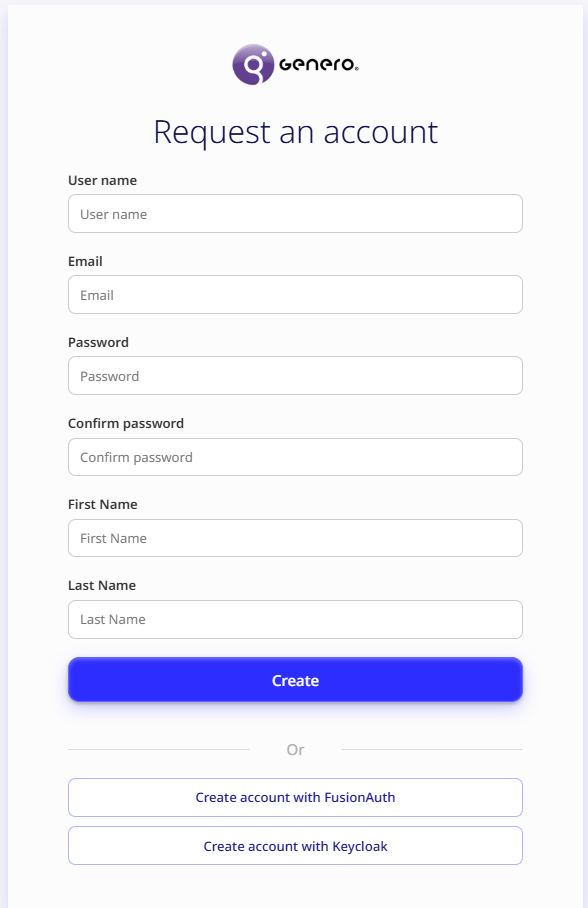
You are prompted to log in with the selected external Identity Provider.
Your request is submitted and appears in the Console App for administrator review. You cannot sign in until the request is approved and roles are assigned.
GIP stores the JSON returned by the IdP’s userinfo endpoint. A verified email
(when provided by the IdP) is used by administrators during the review process.