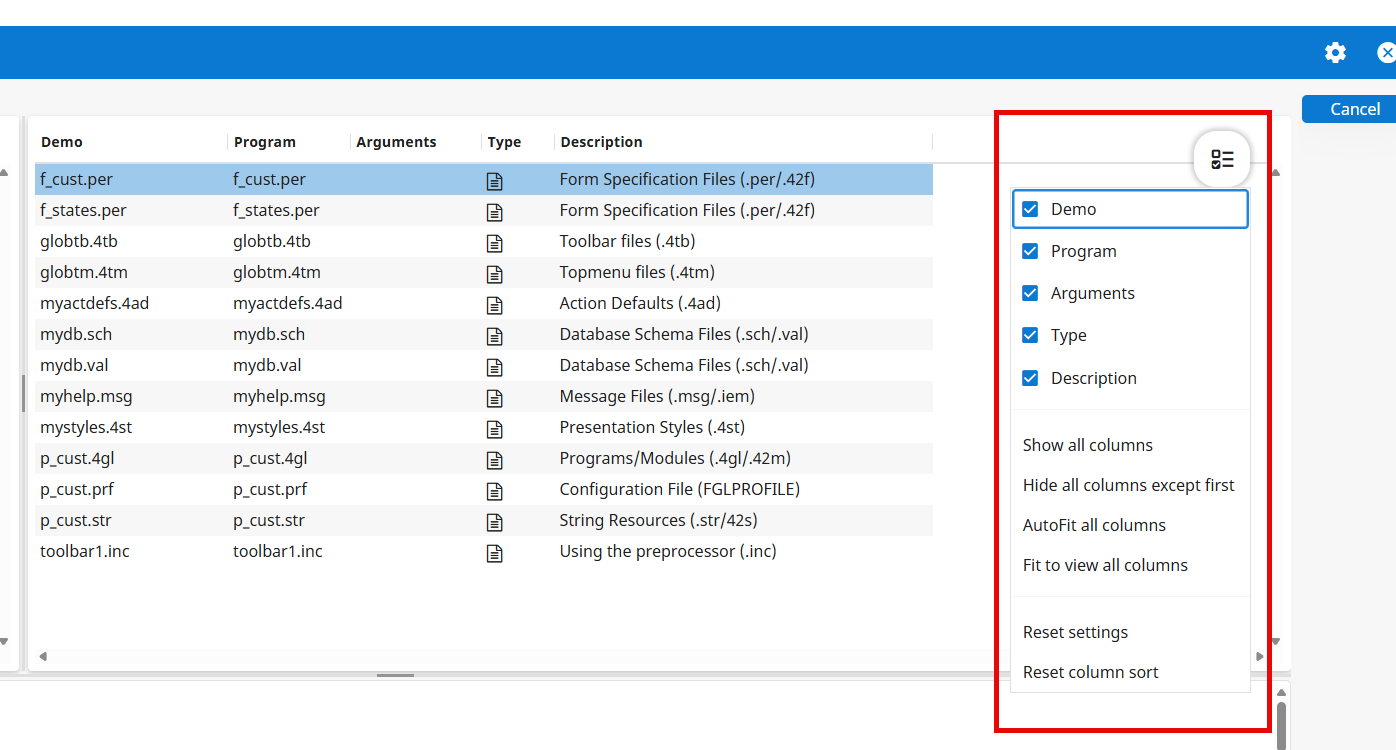
The table menu allows users to show or hide specific columns, autofit columns depending
on the size of the window, and reset the table to its original state.
Access the table menu via a table menu button. The table menu button is initially hidden and only
appears when the user scrolls upward in the table. It displays for a few seconds to allow the user
to access the table menu; then it disappears.Figure: Application with table menu
JavaScript controls the button's behavior, and CSS handles its transition.
Tip:
The context menu and the table menu are two separate entities. To learn about the different types
of context menus and how to control them, go to Display the Genero context menu.
Control how long the table menu button displays
The gbc-TableMenuButton-display-time theme variable controls how long the table
menu remains visible after appearing. The default value is 2500 milliseconds. To change the display
time, set the variable in a theme.scss.json
file:
// in theme.scss.json
{
  ...
  "gbc-TableMenuButton-display-time": 5000,
  ...
}
Setting the gbc-TableMenuButton-display-time to 0 does not hide the menu.