Configure tables
The Table configuration panel is a resizable panel that adjusts column visibility, order, sizing, and creates sort rules for a table.
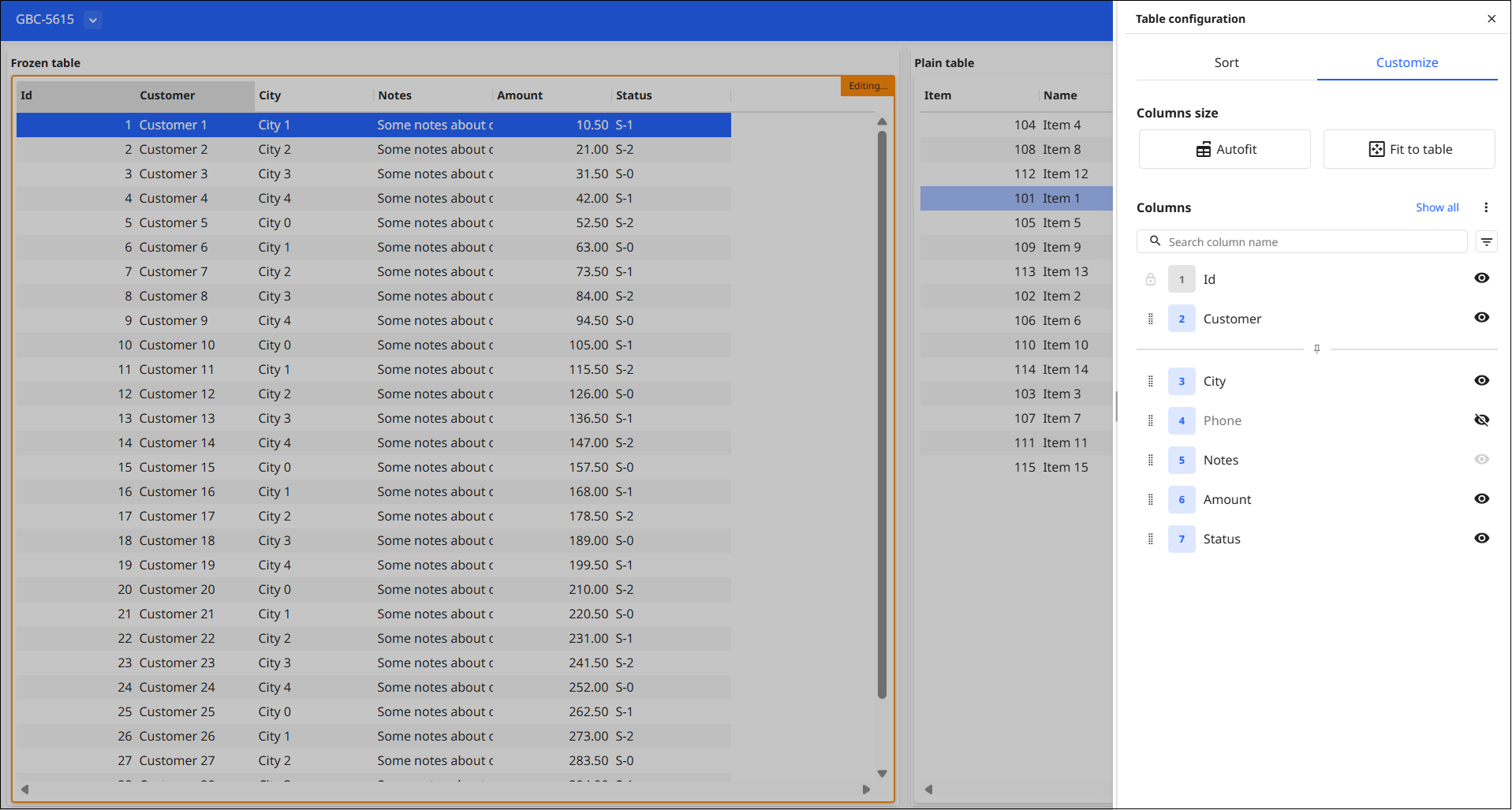
Customize tab
- Autofit resizes every column to fit its content.
- Fit to table stretches the columns to fill the table width.
Under Columns, the list shows every column in its current order. The search field filters the list by column name. Use the filter button to show only Visible, Hidden, or Unmovable columns, or to toggle the position numbers on and off. Show all makes every hideable column visible again. To hide columns, click the ellipsis and select Hide all columns. The first column remains visible. Click Reset view to restore the original column order.
- Drag the column to the desired position.
- Select the column and press Alt+Up/Down.
- Click a column's position number, or press Enter on the focused row to type its target position. Press Enter to apply the move, or Escape to cancel. The panel rounds out of range values to the nearest valid position.
An unmovable column shows a lock instead of a drag handle. If the table has frozen columns, a pin icon separates the frozen columns from the free columns in the list. The eye icon indicates whether the column is visible, hidden, or locked. A crossed-through eye icon means the column is currently hidden. A dimmed eye icon means the column is locked and cannot be hidden.
Sort tab
The Sort tab lists the active sort rules in priority order. To add a new rule, select + Add sort. To apply a rule to a column, select a column from the columns listed in the dropdown and select either an Ascending or Descending sort rule. The panel applies the sort immediately. A rule cannot reuse a column that's already assigned to another rule. Drag a rule's handle, or press Alt+Up/Down, to change its priority. Select the X on a rule to remove it, or select Delete sort to remove every rule at once.
Sorts forced by the program appear as locked rules. They cannot be removed or reordered in this panel.
The panel is fully operable by keyboard. Tab moves between controls. Arrow keys move between tabs and between rows in the columns list. Space shows or hides the selected column, and Alt+Up/Down reorders the selected column or sort rule. Enter on a column row opens its position number for typing. Escape closes what is open first: a dropdown or an open position-number field. It only closes the panel once nothing else is open.
Screen readers announce changes in the panel, such as column moves, sort changes, etc.
Caption bar
A table can display a caption bar above its header, giving direct access to the Table configuration panel.
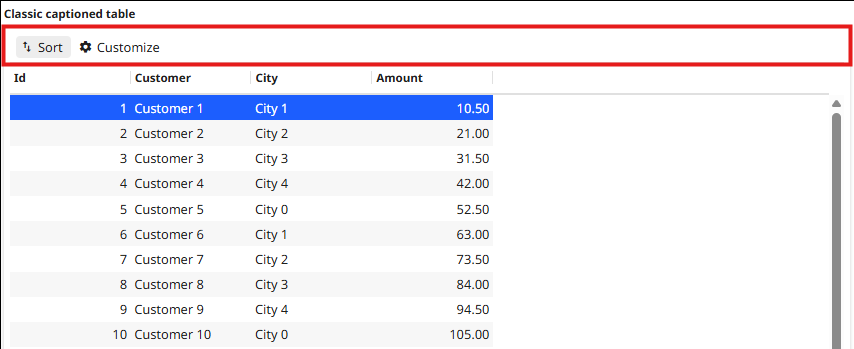
To enable the caption bar, set the tableCaption style attribute on the
TABLE. Values can be "yes" or "no" (default):
<Style name="Table.caption">
<StyleAttribute name="tableCaption" value="yes" />
</Style>
TABLE t_orders (STYLE="caption")- Sort opens the configuration side panel on the Sort tab.
- Customize opens it on the Customize tab.
When enabled, the caption replaces the table menu button. The column header context menu is unchanged. The caption is available on classic and flipped tables.