Services Pool (GWS Only)
Requests for web services are processed by the GWS proxy and are managed using the DVM pool. The examples will assist you in configuring the pool element of your web service.
Why do we need Services Pool for GWS?
A Dynamic Virtual Machine (DVM) can only support one application at a time. As a result, the GWS proxy needs to launch a new DVM (fglrun process) for each request on the web server. If traffic to a web server was to become very high – with hundreds of requests at any period – this could result in slow response time or even overloading of the web server.
To avoid unnecessary use of resources and to respond as fast as possible to client
requests, the GWS proxy manages DVM processes in a pool. From the pool it can release inactive DVMs
or launch new ones, up to the maximum number of DVM processes specified for the application. These
parameters are defined in the POOL element of the Genero Application Server
configuration file.
When sticky mode is used, the POOL is disregarded. The
MAX_AVAILABLE setting limiting the number of DVMs available to the web service is
no longer taken into account. It is recommended to handle the stopping of the sticky web service in
your application code with a dedicated method to be called by the user agent when it needs to close
the session.
How the GAS shuts down inactive DVMs
Genero web service DVMs are not shut down immediately after they stop processing requests. Instead, the gwsproxy uses request statistics and frequency of use to calculate an appropriate delay before shutting down a DVM.
The factors that influence the shutdown delay are summarised in Table 1.
| Factor | When applied | Shutdown timing rule |
|---|---|---|
| Time to start a new DVM | Always | The gwsproxy waits at least the time it takes to start a new DVM. |
| Three times the last request execution time | Only one request processed | Shutdown occurs after waiting three times the last request execution time. |
| Three times the average request frequency | More than one request processed | Shutdown occurs when the time since the last request is at least three times the average frequency of incoming requests. |
The calculated wait time varies depending on recent request load. The gwsproxy also applies minimum and maximum timing limits, as shown in Table 2, to ensure predictable shutdown behavior.
| Limit | Behavior |
|---|---|
| Minimum (one second) | If the calculated shutdown time is less than one second, the gwsproxy waits at least one second before shutting down the DVM. |
| Maximum (ten minutes) | If the calculated shutdown time is greater than ten minutes, the gwsproxy waits no longer than ten minutes before releasing the DVM. |
The minimum and maximum timing limits ensure that inactive DVMs are eventually reduced to the
number specified by MIN_AVAILABLE.
Depending on the GWS function being used, shutting down inactive DVMs can generate different error messages, as shown in Table 3.
| Context | Error code | Message |
|---|---|---|
| HTTP service request process | -15575 | Stopping Service: -15575 - Incoming request has been closed : Disconnected by GAS. |
| Web server process | -2 | Disconnected from application server. |
For details about error -15575, refer to com.WebServiceEngine.GetHTTPServiceRequest, and for information about error -2, refer to Error codes of com.WebServicesEngine, both in Genero Business Development Language User Guide.
Understand DVM_AVAILABLE
DVM_AVAILABLE. Once the service's
configuration is marked as bad, that service will not be accessible until the issue has been
addressed by an administrator. If DVM_AVAILABLE is being reached due to activity on
the system that is not related to the web service (a nighttime backup, for example), you will need
to make adjustments to keep your service's configuration from being marked as bad. This could
include- Increasing the time allowed to start the DVM by increasing
DVM_AVAILABLE. - Removing
KEEP_ALIVE(or setting it to a large value) to ensure that the gwsproxy does not shut down, allowing theMIN_AVAILABLEDVMs to remain active. - Fixing the issue that prevents the web service from starting in the
DVM_AVAILABLEtime frame.
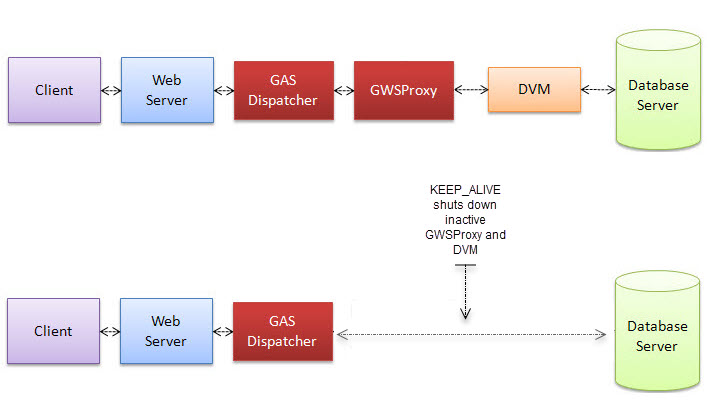
Understand KEEP_ALIVE
The KEEP_ALIVE setting is a means to prevent the gwsproxy for a given web
service, and the DVMs it manages, running indefinitely when inactive. The default value for the
KEEP_ALIVE timeout is 3600 seconds or one hour. After this period of inactivity,
the KEEP_ALIVE timeout is triggered and the GAS shuts down the web service's
gwsproxy and DVMs.
KEEP_ALIVE timeout is shutting down the gwsproxy due to inactivity, you
will see the following message in the gwsproxy
logs:Server stopped due to stop command.
Stopping Service: -15575 - Incoming request has been closed : Disconnected by GAS.
In most cases, you need KEEP_ALIVE to prevent inactive gwsproxy and DVMs running
indefinitely and wasting system resources. Yet, there may be times when you need the service to
remain active, such as when that service is providing authentication for users, or in the management
of user licenses, you need to ensure a license is available for the service. Then you must remove
KEEP_ALIVE (or set it to a large value) to ensure that the gwsproxy does not shut
down. This will allow the MIN_AVAILABLE DVMs to remain active.
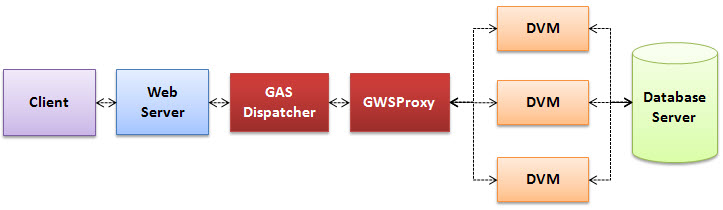
Example 1: One GWSProxy starts three DVMs
<POOL>
  <START>3</START>
  <MIN_AVAILABLE>2</MIN_AVAILABLE>
  <MAX_AVAILABLE>5</MAX_AVAILABLE>
</POOL>
When the Genero Application Server first starts, the START element defines how
many DVMs to start for a particular web service. There is one GWSProxy in charge of the pool of DVMs
for the web service. For our example, this means that one GWSProxy will launch three DVMs.
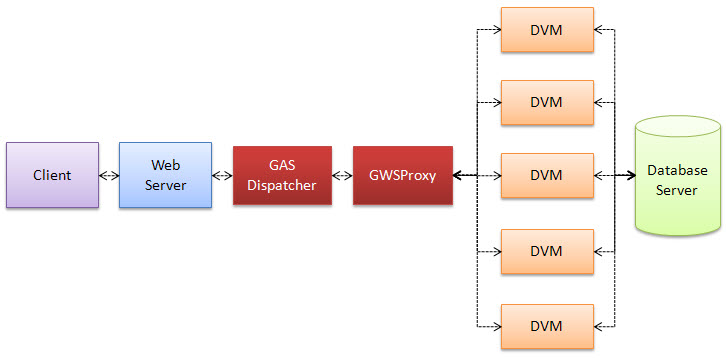
Example 2: GWSProxy launches new DVMs when required up to MAX_AVAILABLE
As requests come in, the GWS proxy determines whether there is a need to start up new DVMs. For
the number of pending requests in the queue, the GWS proxy computes the average request execution
time against the time to start a DVM. If dispatching all pending requests over the active DVMs takes
less time than starting a new DVM, no new DVM will be started. In other words, a new DVM will only
be started if it will help to decrease the waiting time of all pending requests. At most,
MAX_AVAILABLE DVMs can be started.
Continuing with our example, up to five DVMs can be launched to handle requests.
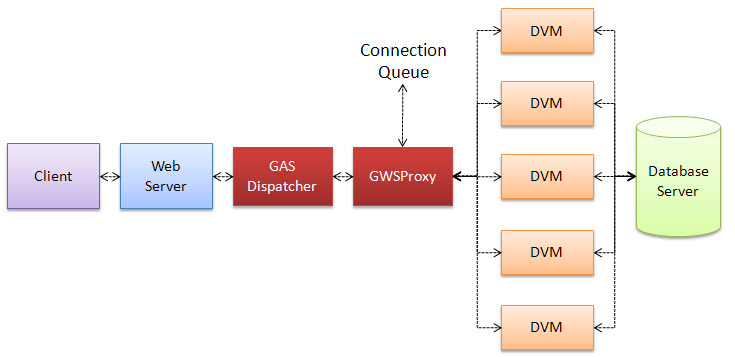
Example 3: GWSProxy manages a connection queue
What happens when there are MAX_AVAILABLE DVMs actively processing requests, and
a new request comes in? The new request is placed in a connection queue, waiting for a DVM to become
available. The new requests could (in theory) be waiting indefinitely, except:
-
There is the option of a timeout in the web server to handle infinite wait.
-
Any web service client can define its own timeout limit. If a client is willing to wait indefinitely for a web service response, it is permitted.
Continuing with our example, this means that if all five DVMs are actively processing requests, and a sixth requests comes in, that request is placed in the connection queue until a DVM is available to process the request, or a timeout is reached based on settings in either the web server or the web service client.
Example 4: GWSProxy releases inactive DVMs
DVMs that are not actively processing requests can be released based on statistics derived from various monitored conditions, including the elapsed time since the last incoming request.
For more information on how inactive DVMs are released, go to How the GAS shuts down inactive DVMs
Continuing with our example, if all DVMs are inactive, one DVM will eventually be released,
reducing the total number of DVMs to the minimum available (MIN_AVAILABLE) amount
of two.

Example 5: GWSProxy stops after KEEP_ALIVE inactivity
<POOL>
  <START>2</START>
  <MIN_AVAILABLE>1</MIN_AVAILABLE>
  <MAX_AVAILABLE>5</MAX_AVAILABLE>
</POOL>
What happens when DVMs are no longer processing requests, and no new requests are coming in?
Continuing with our example, if none of the DVMs are actively processing requests, then the DVMs
will eventually be released, bringing the total number of DVMs to the MIN_AVAILABLE
amount of one.
If the inactivity continues for the time set by the KEEP_ALIVE timeout, then the
GAS shuts down the GWSProxy and the remaining MIN_AVAILABLE DVMs. See Understand KEEP_ALIVE.