Add and edit environment variables using the Environment Variable
dialog.
When the Environment Variable dialog appears, complete the following
fields:
Type
Select the type of environment variable. The available options are Value, Value List, Directory,
Directory List, File, or File List.
Important:
Choose the correct type. It not only determines which wizard you use to specify the environment
variable value, it also plays an important role for processing.
Name
Enter the name of the environment variable.
Value
Enter the value for the environment variable.
If the type is Value List, Directory, Directory List, File, or File List, click the ellipsis
(...) button to browse and select the correct value.
If the value includes another environment variable, use a dollar sign ($) followed by the
variable name in parentheses. For example, $(FGLLDPATH).
Use a semicolon (;) to separate items in a list, regardless of operating system.
Use a slash (/) as the directory path separator, regardless of operating system.
Examples
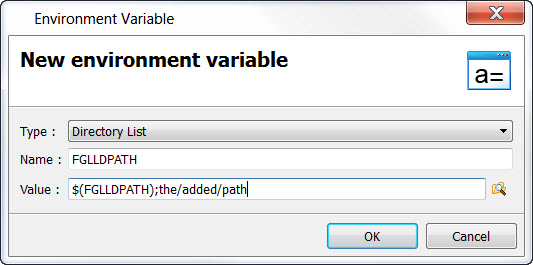
In this example, FGLLDPATH is a directory list. Its value uses the current value of FGLLDPATH,
followed by the new directory path.Figure: Setting FGLLDPATH
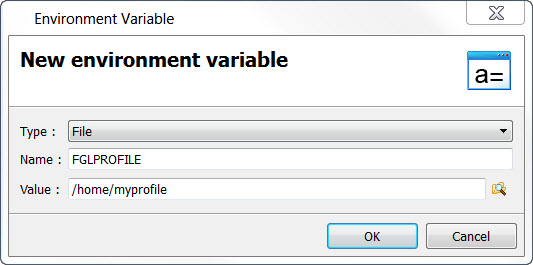
In this example, FGLPROFILE identifies a single file, /home/myprofile.Figure: Setting FGLPROFILE
Reusing existing environment variables
You can reuse an environment variable defined in a parent or ancestor node when you define an
environment variable for a child node.
For example:
The parent node defines: MY_VALUE=hello
The child node reuses the parent node variable: MY_COMPLETE_VALUE=$(MY_VALUE)
world
The final value of MY_COMPLETE_VALUE is "hello world".
Another example:
The parent node defines: MY_VALUE=foo
The child node reuses the parent node value and redefines the variable:
MY_VALUE=$(MY_VALUE) bar
The final value of MY_VALUE will be "foo bar".
As a result, you can reuse System environment variables or Genero Studio Configuration
variables in User Variable definitions within Project Manager.