The Welcome Page
The Welcome Page is displayed when Genero Studio is launched. From the Welcome Page, open a recent or sample project or configure the environment or database connection.
Open the Welcome Page by selecting . The Welcome Page is the first tab in the Documents view.
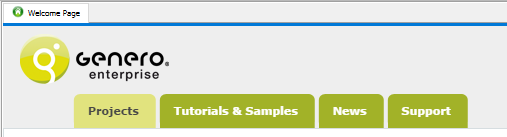
Tabs
Tabs organize the Welcome Page into sections.
- Projects
- Open a recently opened Project (4pw) or document. See Projects.
- Tutorials and Samples
- Sample files distributed with Genero Studio; contains links to open the sample projects. See Samples directory.
- News
- RSS feed with news about Genero.
- Support
- Access to support and training videos.
Customizing the Welcome Page
To change what is on the Welcome Page, (or, if you are on a Mac, ), then .
- Show Welcome Page at start up
- Uncheck if you do not wish this page to display.
- Template
- Select one of the following templates for the Welcome Page:
- Light
- Classic - The default theme based on the OS theme.
- Adaptive - The Welcome Page automatically reflects the colors of the interface theme, including any hue applied through the Hue settings. For more information, go to Setting the interface theme.
- Dark
- Clear
- Clear all stored cookies.
- Visible Sections
- Check the sections that you wish to be displayed. Enable RSS feeds with the RSS Section checkbox.
- Parameters
- Use the edit button to edit the feeds used on the page and to add or edit RSS locations.