Licence GRE using GUI without internet
Without internet access, you register the license with Four Js from another machine via the internet, or by phone. Then use the user interface to license your Genero Report Engine (GRE) product.
-
Launch the Genero Report Engine licensing user interface.
- From Genero Studio, select .
- From the desktop, find and select Genero Report Engine Licenser from the application list.
The licensing page opens in a Web browser.Figure: Genero Report Engine Licenser 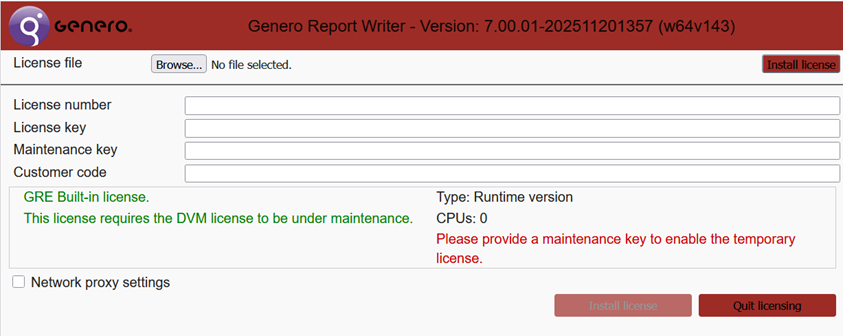
Register the license
-
In the Licensing form, enter your installation key, and click Activate
License.
Figure: Manually activate your license 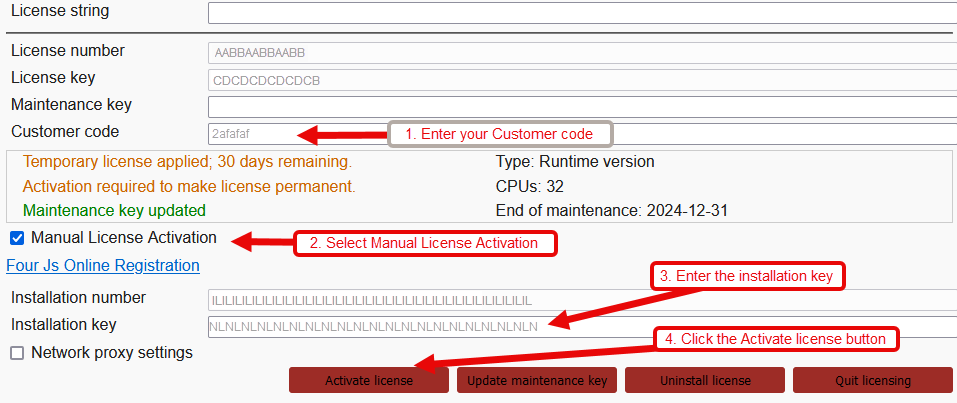
Your license has been installed and activated.