License GRE using GUI and internet
You can license a Genero Report Engine (GRE) product installation using the Genero Report Engine Licenser GUI application.
Internet is required
Before you begin: Internet access is required to activate the license; a temporary installation does not require internet.
-
Launch the Genero Report Engine licensing user interface.
- From Genero Studio, select .
- From the desktop, find and select Genero Report Engine Licenser from the application list.
The licensing page opens in a Web browser.Figure: Genero Report Engine Licenser 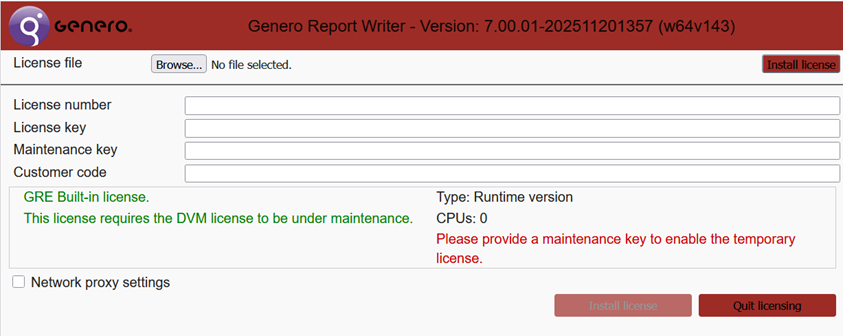
Register the license
-
Enter the customer code (if not already entered) and click Activate
License.
Figure: Example activating the license over internet 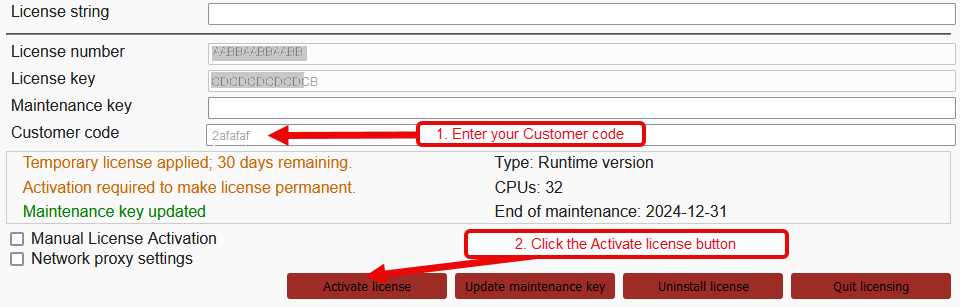
Your license has been installed and activated.