License BDL using GUI without internet

Without internet access, you register the license with Four Js from another machine via the internet, or by phone. Then use the user interface to license your Genero Business Development Language (BDL) product.

  1. Launch the Genero licensing graphical interface:
    • It may launch automatically when you finish installing your product.
    • From Genero Studio, select Tools > Genero Tools > Genero BDL Licenser.
    • From the Window Start menu, select the Genero BDL Licenser tool from your Four Js program list.
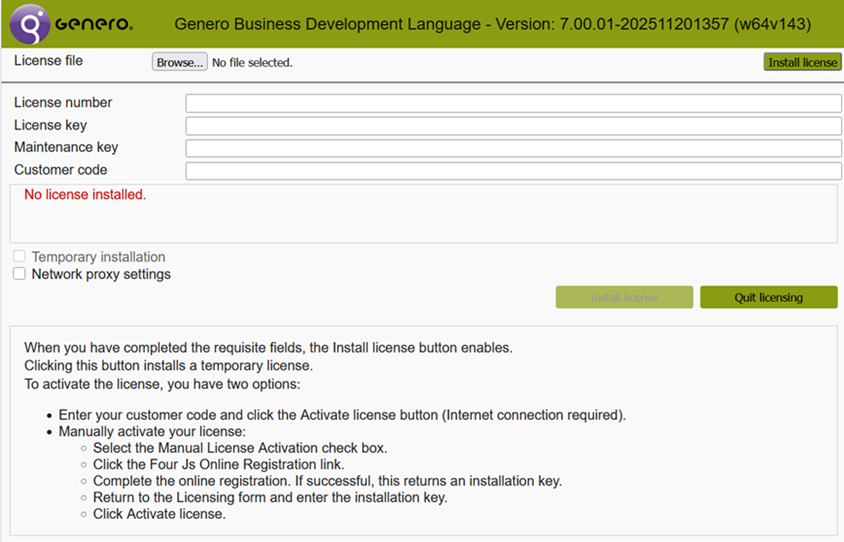
    The licensing page opens in a Web browser.
    Figure: Genero BDL Licenser Page

    Genero user interface for licensing your product and checking license status. The information displayed shows that no license is installed.
  2. Enter the license details using one of these options:

    1. Click Browse, select the license file, then click Install License.
    2. Enter the license number, license key, and maintenance/subscription key, then click Install License.
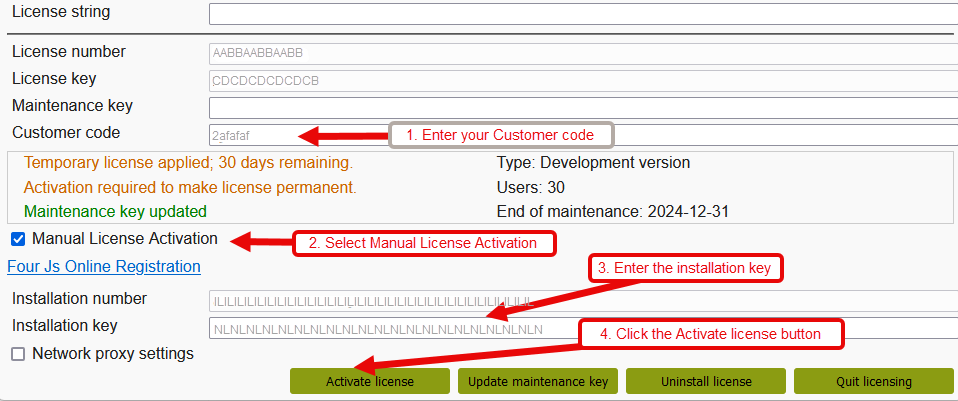
  3. Select the Manual License Activation checkbox to see the generated installation number.

Register the license

  1. From a machine that has internet access or a smart phone, go to the License your products page on the Four Js web site and follow the procedure described in Register your license.

    With your license registered, you have the required keys.

  2. In the Licensing form, enter your installation key, and click Activate License.
    Figure: Example activating the license manually (no internet)

    Your license has been installed and activated.

  3. Click Quit Licensing to close the licensing application.